
Create empty QR codes
Want your customers to add their own memories to your products? With empty QR codes, you sell the product, and your customer uploads both the image and the video in a few taps. When they point their phone camera at the image, their video plays right on top of it ✨
Perfect for photo albums, canvas prints, picture frames, and any product without a pre-made design.
1. Start a new activation
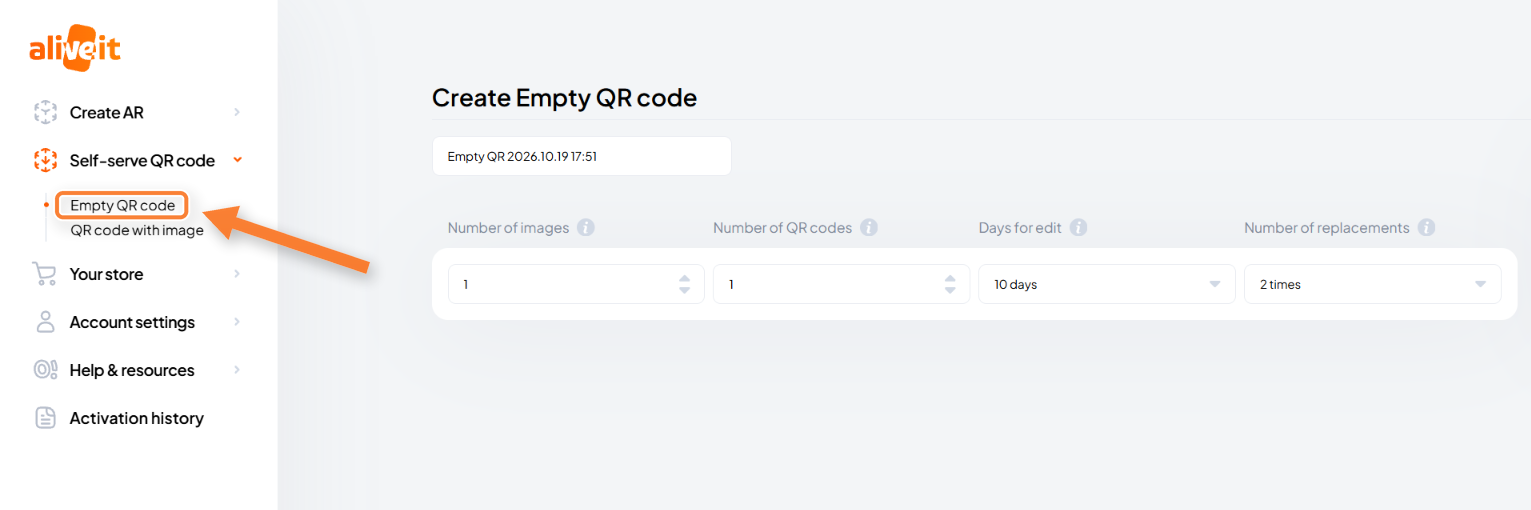
In the sidebar, go to Self-serve QR code → Empty QR code. Give it a name that's easy to find later, or keep the default one.
2. Set up your QR codes
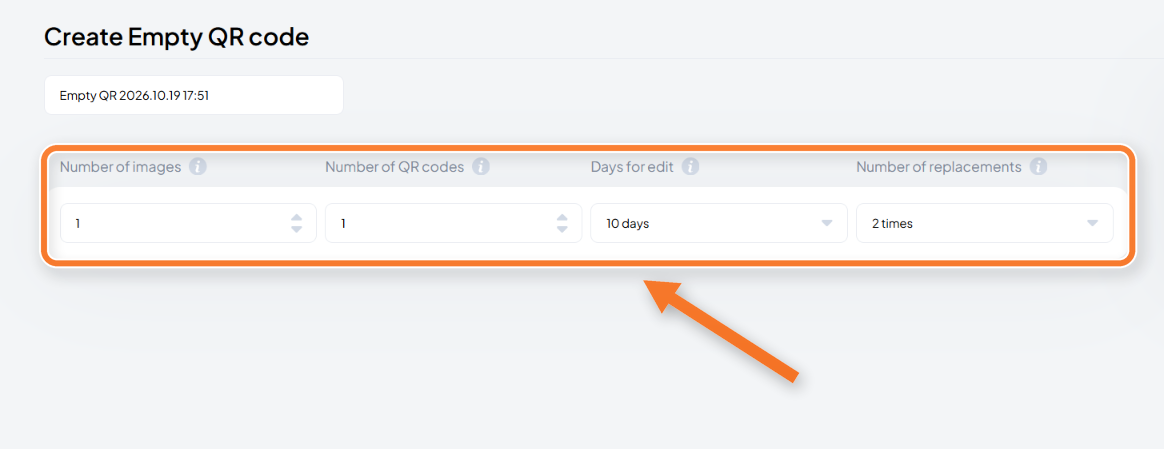
| Setting | What it means | Limit |
|---|---|---|
| Number of images | How many image and video pairs a customer can add to one QR code | Up to 30 per code, or up to 100 if you create just one code |
| Number of QR codes | How many unique QR codes to create | Up to 1,000 |
| Days for edit | How long customers can replace their image or video, counted from their first upload | Up to 15 days |
| Number of replacements | How many times customers can edit their content | Up to 10 times |
3. Create
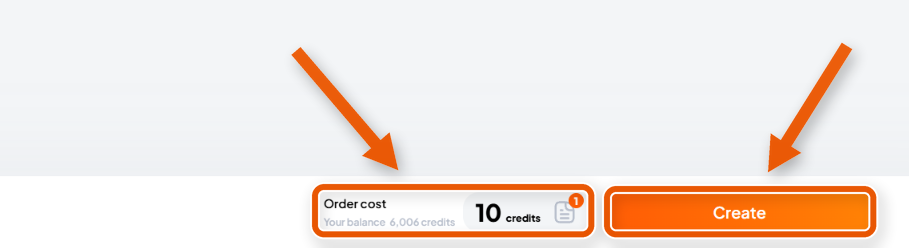
Click Create and wait a moment while your QR codes are generated.
4. Download your files
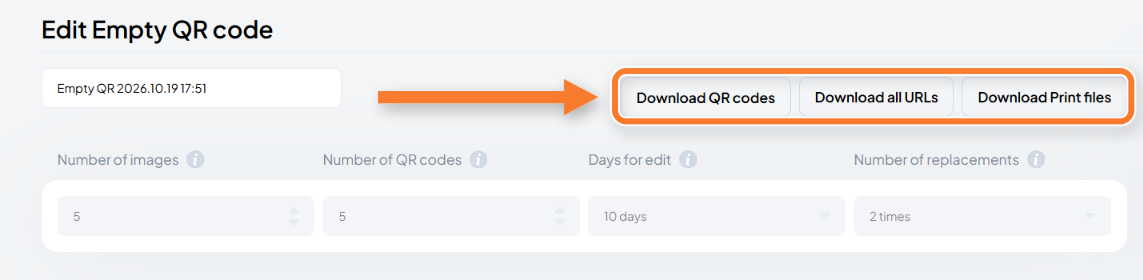
When it's done, three buttons appear:
- Download QR codes: a ZIP with all your QR codes.
- Download all URLs: an Excel file with the link for each QR code. Handy for adding links to your listings or emails.
- Download print files: a ZIP with QR codes ready to send to print.
What your customers do
Your customer scans the QR code, uploads their image and video in the AliveIt app or right in their browser, and points the camera at the image. No account needed.
Tip: add a short note to your product, like "Scan to add your video", so customers know what to do.