
Replace a customer's video
Your customer uploaded the wrong video? You can replace it yourself from your dashboard. Customers can also change it themselves in the AliveIt app, see how it works for them at the end of this article.
1. Find the activation
Go to Activation history and find the activation with your QR codes. Use the search bar to look it up by name or by QR code ID.
Click the list icon next to its name to see every QR code in it.
2. Open the QR code
Find the QR code you need (search by its ID if the list is long) and click the pencil icon at the end of the row.
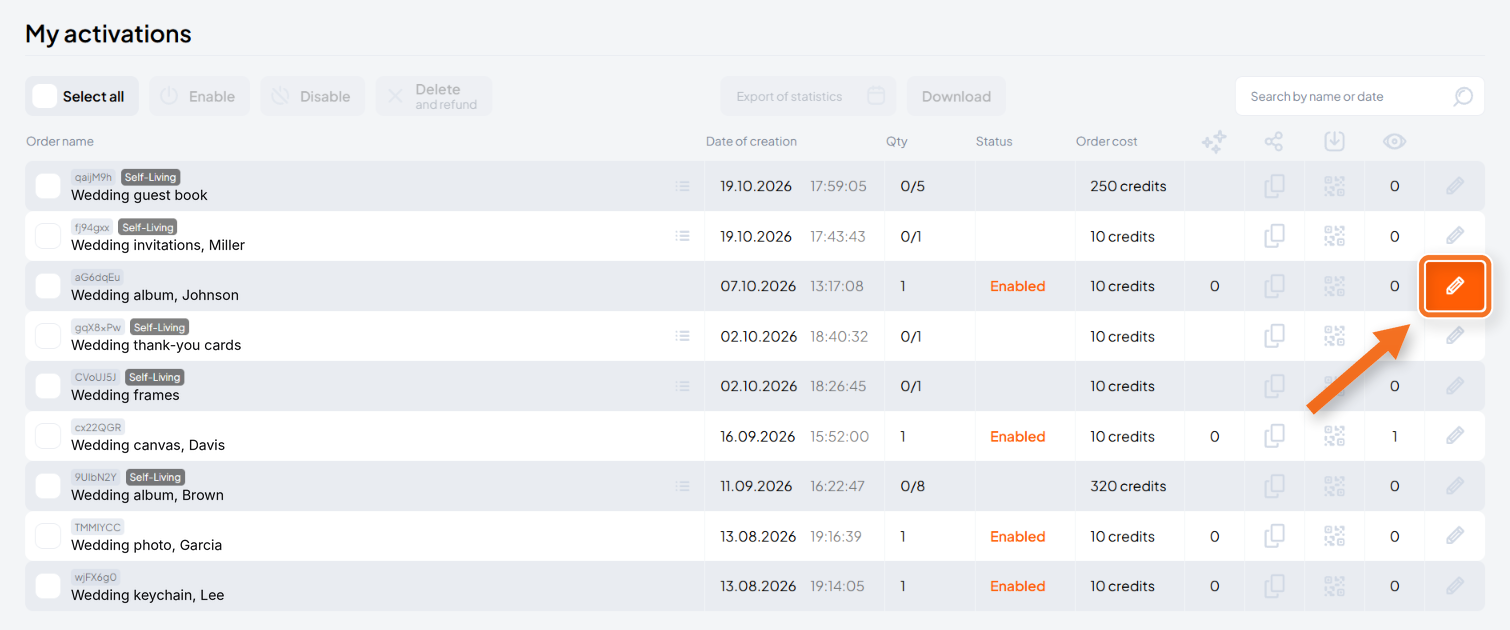
3. Replace the video
Delete the old video, upload a new one, and click Update.
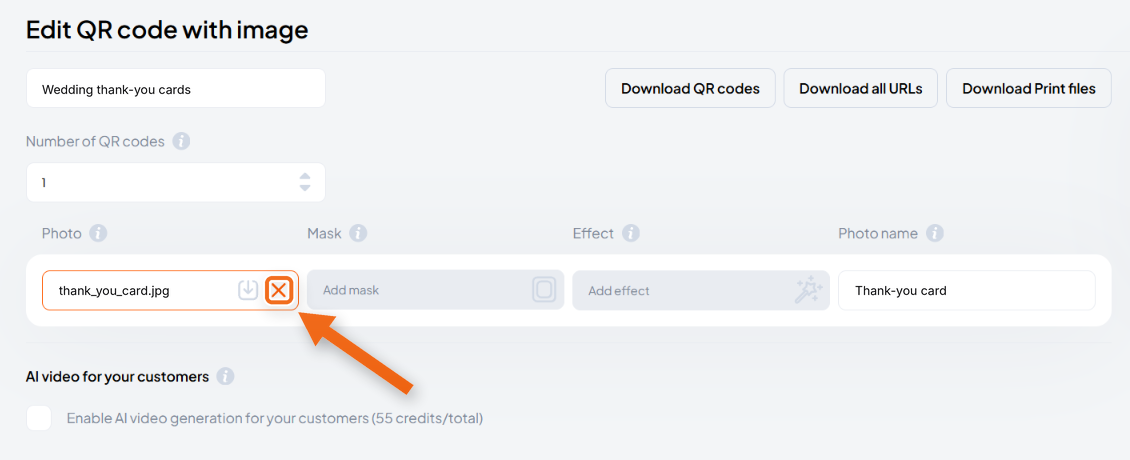
Want your customer to upload it again instead? Delete the old video and click Update without adding a new one. Your customer then clears their Gallery in the AliveIt app and scans the QR code again to upload a new video.
Replacing a video from your dashboard doesn't use up your customer's own replacements in the app.
How customers change their video
Your customers can change their video in two ways:
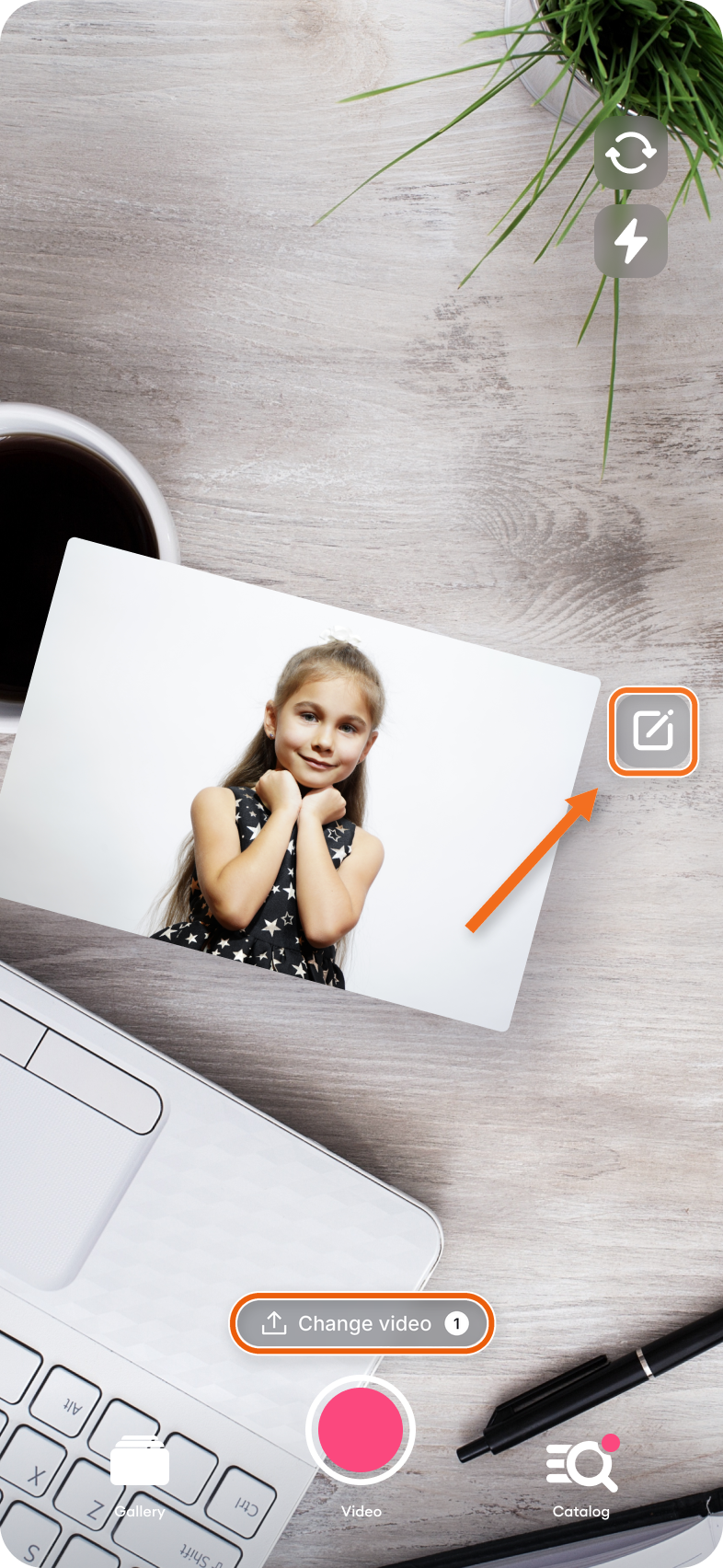
- From the camera: they scan the QR code and tap Change video next to the camera button. A counter shows how many changes and how much time they have left.
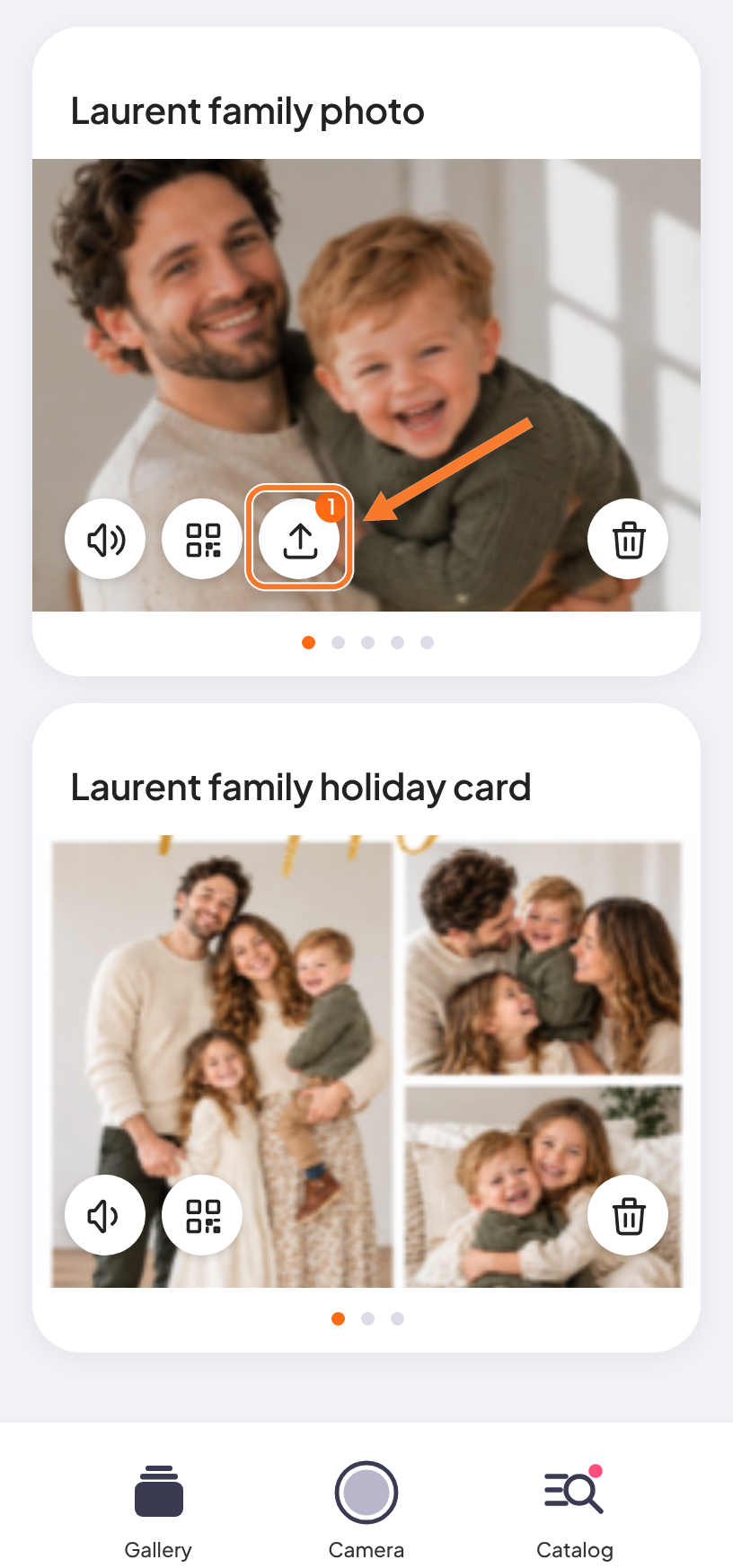
- From the Gallery: they open Gallery in the app and tap the change video icon. No scanning needed.
You decide how much freedom they get. When you create empty QR codes, set Days for edit and Number of replacements (up to 4).
Share How to change your video with your customers, so they know what to do.